Fields, Tags & Attachments
All the content types a note can hold — fields, Markdown, tags, links, and file attachments.
Field Types
Every note’s fields are defined by its schema (see Scripts & Note Types). Krillnotes supports the following field types:
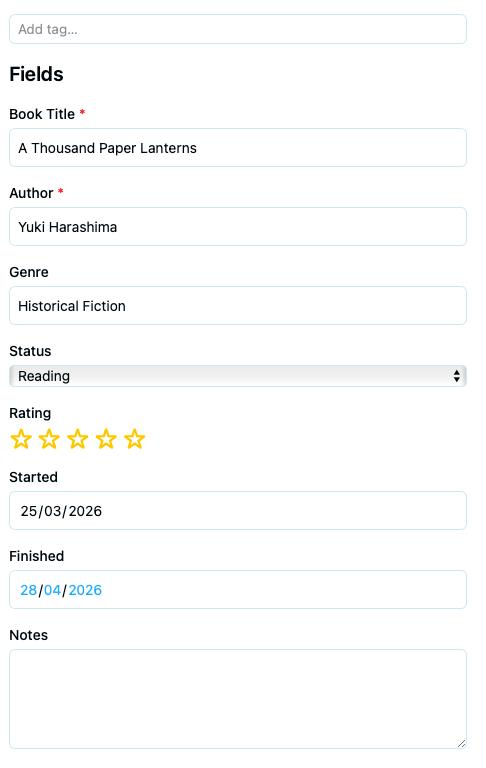
| Type | Description |
|---|---|
| Text | Single-line text input |
| Textarea | Multi-line text with Markdown rendering |
| Number | Numeric input |
| Boolean | Checkbox (true/false) |
| Date | Date picker (ISO format YYYY-MM-DD) |
| Email address (rendered as a mailto link in view mode) | |
| Select | Dropdown with predefined options |
| Rating | Star rating (1 to N) |
| Note Link | Reference to another note in the workspace |
| File | File attachment reference |
Markdown in Textarea Fields
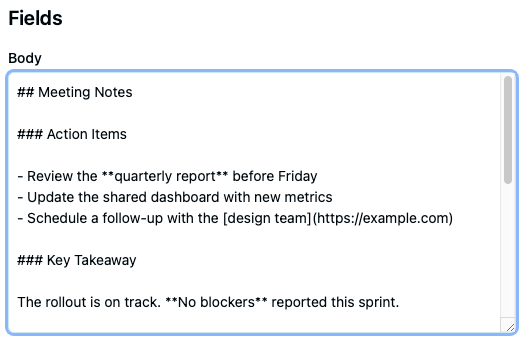
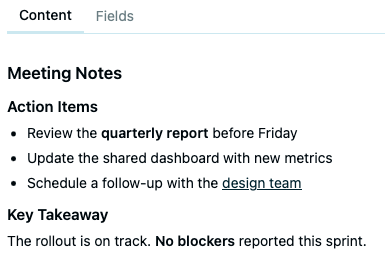
Any textarea field is rendered as Markdown in view mode. You can use headings, bullet lists, bold, italic, links, and more.
Note Links
A Note Link field lets you reference another note in the workspace. In view mode, the linked note’s title appears as a clickable link that jumps directly to that note.
Adding a link
In edit mode, click the note link field and start typing. An autocomplete dropdown shows matching note titles.

Select a note from the list to set the link.
Viewing a link
In view mode, the linked title is clickable — clicking it navigates to the referenced note.

Tags
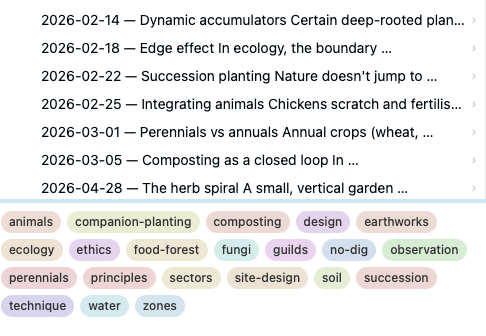
Tags are free-form labels you can attach to any note. They appear as coloured pills in the detail view and are collected in a tag cloud at the bottom of the tree panel.
Editing tags
Open a note for editing. The tag bar appears below the title — existing tags show with an × button to remove them, and the Add tag… input lets you type a new one.
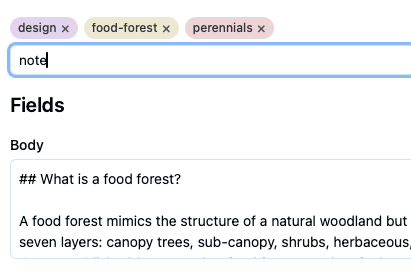
Press Enter or comma to confirm a tag. Tags are saved when you save the note.
Tag cloud
The tag cloud at the bottom of the tree panel shows every tag used in the workspace, sized by frequency.
Filtering by tag
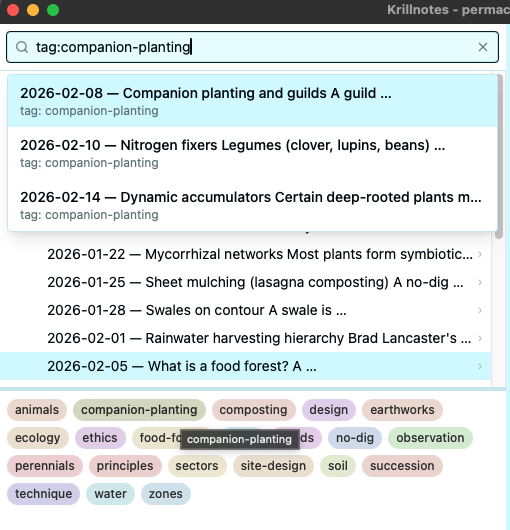
Click a tag in the cloud to filter the tree to notes that carry that tag. Click it again (or press Escape) to clear the filter.
File Attachments
Notes can have file attachments — images, documents, or any file type the schema allows. Attachments are encrypted separately with ChaCha20-Poly1305 and stored alongside the workspace.
Adding attachments
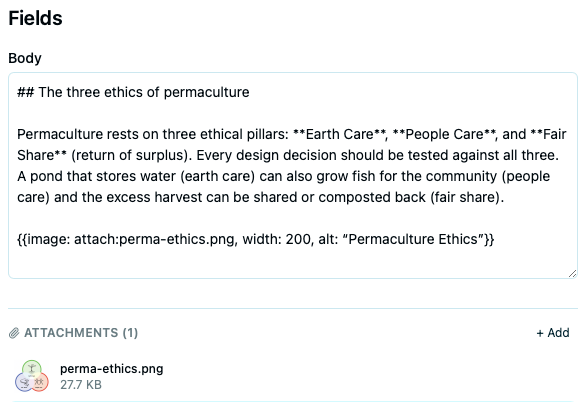
In edit mode, the attachments section appears below the fields. You can:
- Click Browse to select files from your computer, or
- Drag and drop files directly onto the drop zone.
Viewing attachments
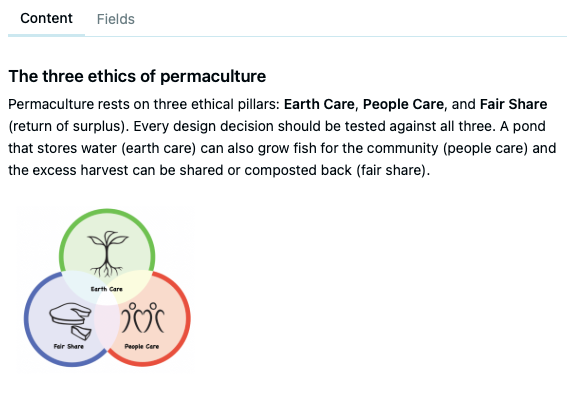
In view mode, image attachments render as inline thumbnails. Non-image files show with a paperclip icon and filename. Click any attachment to open or download it.
Inline images in Markdown
You can embed attached images directly in Markdown fields using the special syntax:
{{image: attachment:photo, width: 400, alt: "Description"}}
Field Groups
Scripts can organise fields into collapsible groups, keeping complex forms manageable.

Groups can also have visibility conditions — they only appear when specific criteria are met.
Field Validation
Scripts can define per-field validation rules. When a value doesn’t pass validation, an error message appears below the field.

Validation runs as you type, giving immediate feedback before saving.