Scripts & Note Types
Customising what types of notes exist and how they behave.
How Scripts Work
Note types in Krillnotes are not hard-coded — they’re defined by Rhai scripts stored in each workspace. A script calls schema() to register a note type with its fields, hooks, and behaviour.
This means you can:
- Create entirely new note types (recipes, tasks, contacts, inventories, …)
- Add validation, computed fields, and custom views
- Extend the right-click context menu with actions
- Migrate data automatically when a schema evolves
For the full scripting language reference, see the Scripting Guide.
Script Manager
Open Workspace → Manage Scripts to see all scripts in the current workspace.
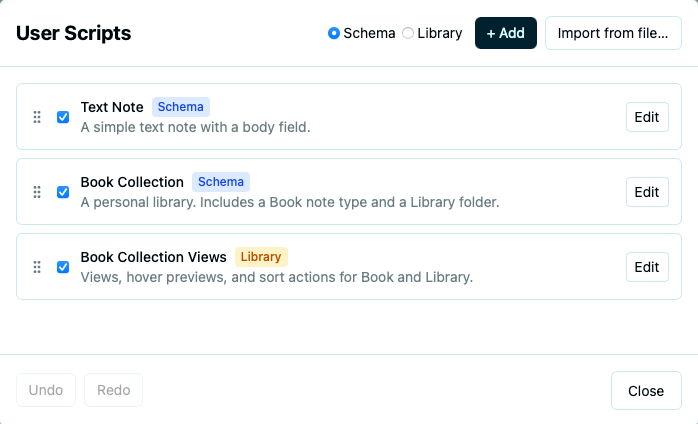
Each script shows its name, category (Schema or Library), and an enabled toggle. From here you can:
- + Add — create a new blank script (choose Schema or Library category)
- Import from file… — load a
.rhaiscript file from disk - Enable / Disable — toggle a script without deleting it
- Reorder — drag scripts to change their load order
- Edit — open the script in the code editor
- Delete — remove a script permanently
Script categories
- Schema scripts (
.schema.rhai) — define note types viaschema(). These are the core building blocks. - Library scripts (
.rhai) — provide shared functions and deferred registrations used by schema scripts.
The Script Editor
Clicking Edit opens the built-in code editor with syntax highlighting.
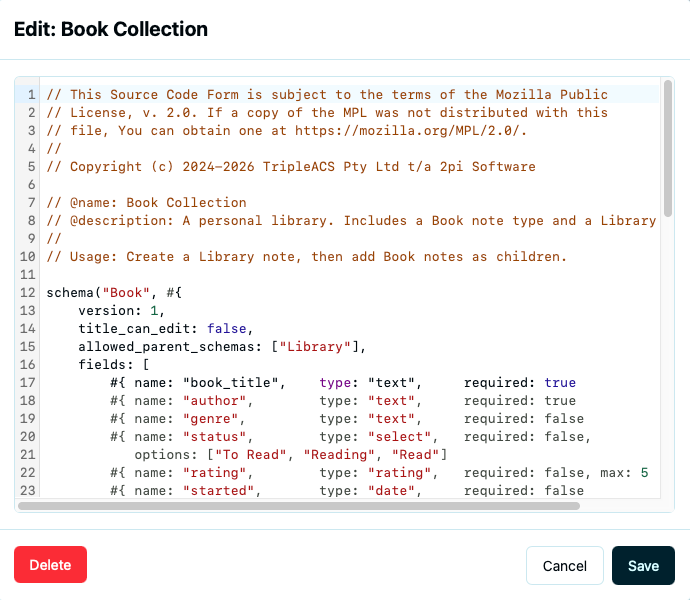
The script editor has its own undo/redo stack (separate from the note undo history). Changes are saved when you click Save.
Importing a script
Click Import from file… in the Script Manager to load a .rhai file from your computer. The script’s content is imported into the workspace — the original file is not linked.
Script Errors and Warnings
If a script has a syntax error or fails to load, the Script Manager shows the error inline.
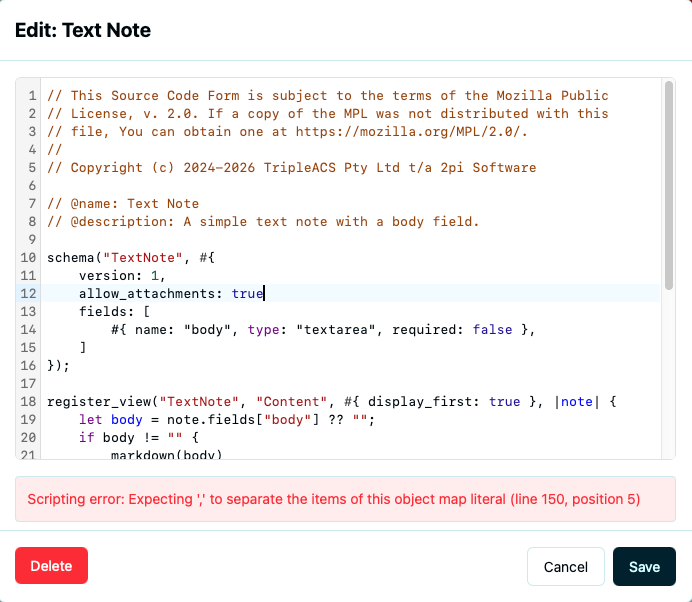
A warnings badge appears when there are unresolved registrations — for example, a register_view() call targeting a schema that hasn’t been defined yet.

Custom Views
Scripts can register custom view tabs for a note type using register_view(). These appear alongside the default Fields tab in the detail panel.
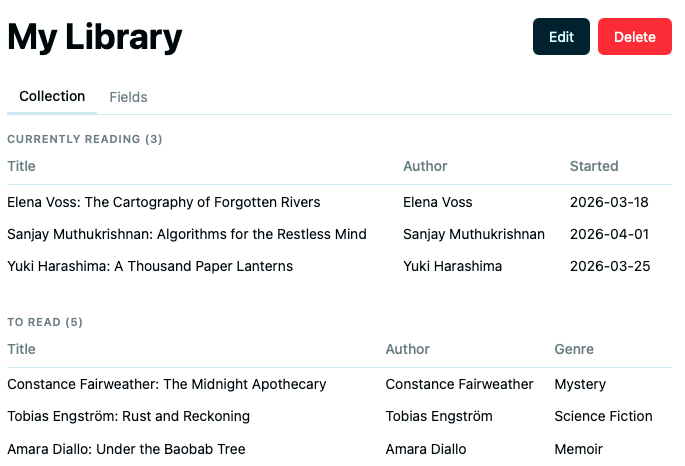
Custom views are rendered from Rhai closures using display helpers (text(), field(), link_to(), table(), etc.). They’re ideal for summary dashboards, tables, or specialised displays.
Hover Tooltips
Scripts can register custom hover tooltips using register_hover(). When you hover over a note in the tree, a tooltip shows the registered content.
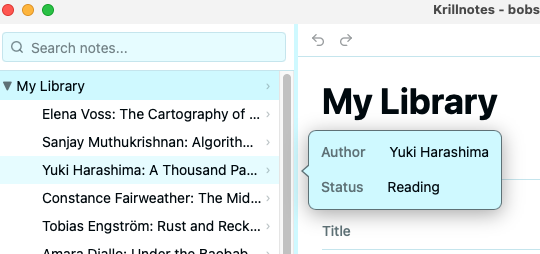
Individual fields can also be flagged with show_on_hover: true in the schema to appear in the default hover display.
Schema Versioning and Migration
Schemas have a version number. When you update a schema script and bump its version, Krillnotes automatically detects notes at the old version and runs the migrate closure to update their data.
Migrations run in a single transaction when the workspace is opened. Notes that fail migration are left at their current version and can be retried later.
Built-in Types
Krillnotes ships with several system scripts that are always available:
- TextNote — a simple note with a Markdown body field
- Contact / ContactsFolder — CRM-style contacts with auto-computed titles and table views
- Task / Project — task management with status indicators
- Recipe — cooking instructions with ingredients and method
Additional templates are available on the Templates page.