Themes, Settings & Languages
Personalising Krillnotes — appearance, preferences, and language.
Settings
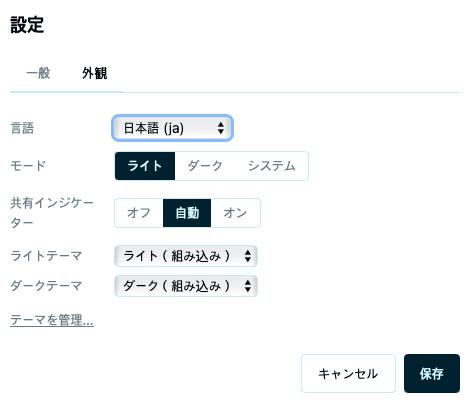
Open Settings from the Edit menu (⌘, on macOS, Ctrl+, on Windows/Linux). Settings are split into two tabs: General and Appearance.
General
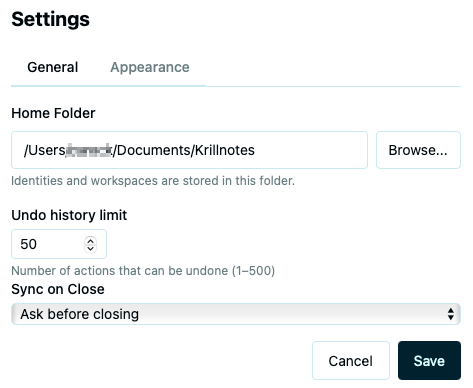
- Home Folder — where Krillnotes stores workspaces, identities, themes, and other data. Default is
~/Krillnotes/. Click Browse… to change it. - Undo History Limit — how many undo steps to keep per workspace (1–500, default 50). Higher values use more memory.
- Language — choose from 7 languages (see below).
- Sharing Indicator Mode — controls whether permission dots appear in the tree:
- Off — never show permission dots
- Auto — show dots only when the workspace has peers
- On — always show permission dots
Appearance
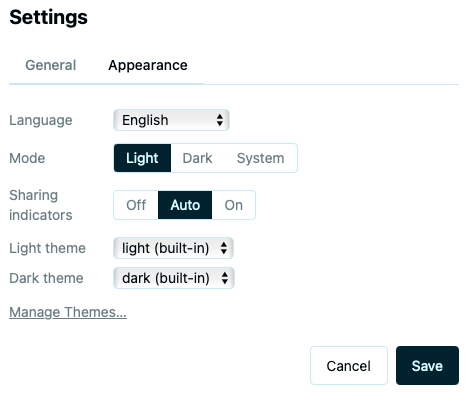
- Theme Mode — choose Light, Dark, or System (follows your OS preference).
- Light Theme / Dark Theme — select which theme to use for each mode.
- Manage Themes… — opens the theme manager to create or edit custom themes.
Themes
Krillnotes supports custom colour and typography themes. The built-in light and dark themes are always available; you can create your own alongside them.
Managing themes
Click Manage Themes… in the Appearance settings to open the theme manager.
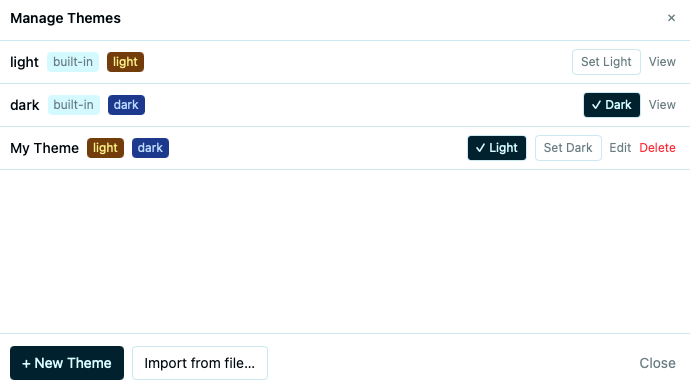
- Built-in themes cannot be edited or deleted. The active themes are marked with a checkmark.
- For custom themes: Set Light / Set Dark assigns it to a colour mode, Edit modifies it, Delete removes it.
- + New Theme — create a theme from the default template.
- Import from file… — load a theme from a JSON file.
Editing a theme
Themes are defined as JSON with separate light-theme and dark-theme sections. Each section can contain colors (OKLCH format), typography (font family, size, line height), and spacing objects.
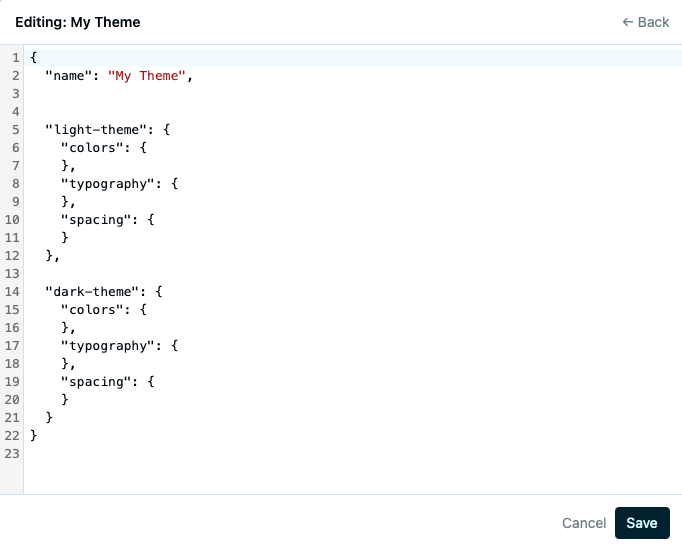
Click Save to apply the theme immediately.
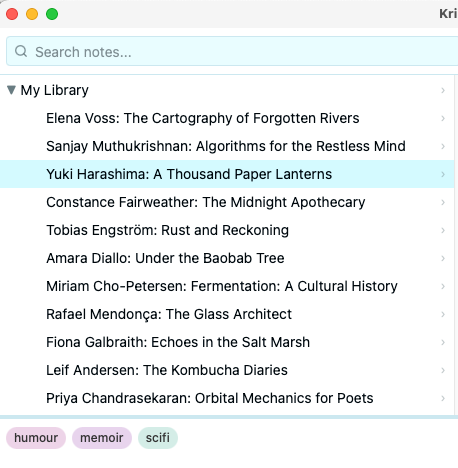
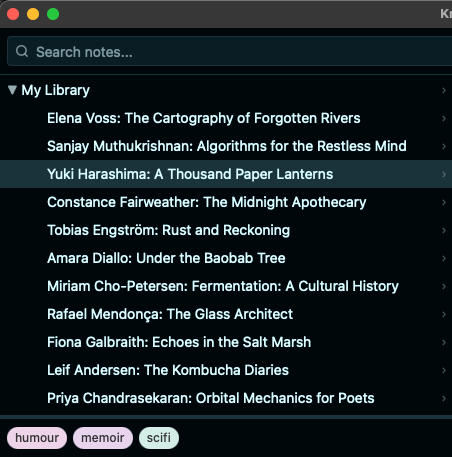
Light vs. Dark
Languages
Krillnotes is available in 7 languages:
| Language | Code |
|---|---|
| English | en |
| German (Deutsch) | de |
| French (Français) | fr |
| Spanish (Español) | es |
| Japanese (日本語) | ja |
| Korean (한국어) | ko |
| Chinese (简体中文) | zh |
Changing the language
Open Settings → General and select your language from the dropdown.
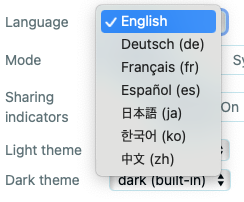
The entire UI updates immediately — menus, dialogs, buttons, and messages all switch to the selected language.